
Working with wordpress is fun even for the non-tech people as it’s easy to create a website with wordpress. But sometimes it may get frustrating when the website does not update when you’re making some important changes. In this article, we’ll see the 100% working solution to the problem where your wordpress website is not reflecting the new changes.
We’ll discuss 2 methods in this article which you can find useful to fix the problem that you’re facing. You can also see the references below the image in ‘Table of contents’ section.
#Table of contents
- Trying to update with hard reload.
- Update by clearing browser data.
- Purging website(100% Working).
Upscale Your Business With Professional Application Development & Video Editing Services. Pocket Friendly Prices With Professional Services.
#Update With Hard Reload
Sometimes browsers and websites take on cookies from the previous reloads and are unable to handle it properly. This causes the issue of incorrect data display (The website not updating). There are 2 types of reloads in the browsers, Soft reload and Hard reload. This can be solved by doing hard reload, Press “ctrl+shift+R” for windows & “Command+shift+r” for mac.
If your issue is still unresolved using this method also then don’t worry we’ve more solutions to the problem, Let’s move on to our second method of resolving these issues.
Join Us Now To Generate A Part Time Income With Ease. Work On Tech As Well As Non-Tech Roles.
#Updating by clearing cache and browser data.
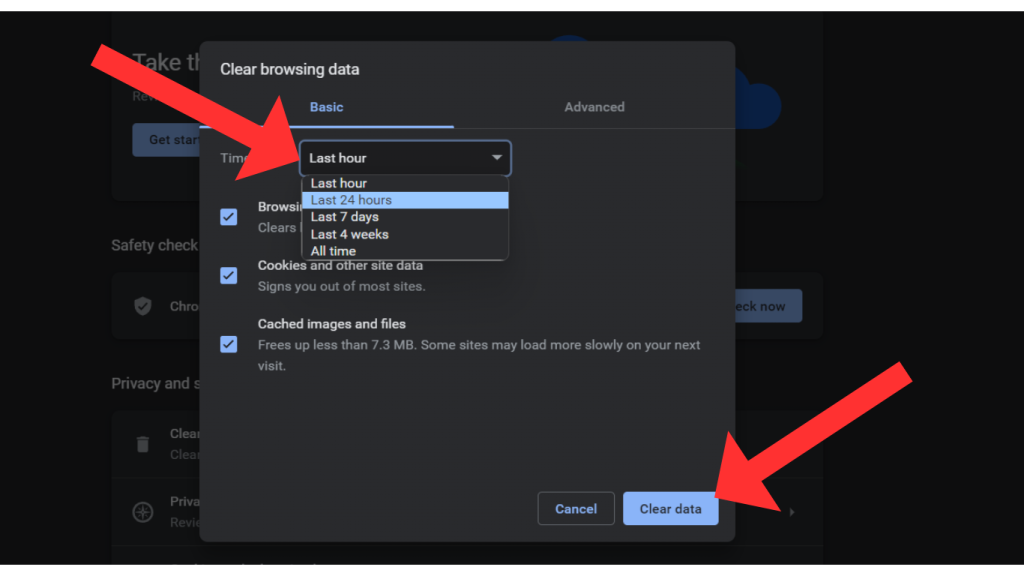
You can also resolve this issue by clearing the browser data that is stored in cache memory to resolve this issue, Below mentioned are the steps (For Chrome) to clear the browser data, Don’t worry, Browsers other than chrome also have almost the same pattern.
- Go to 3 dots on top right side of your screen.
- Select Settings option from there.
- Go to privacy and security.
- Select clear browsing data button.
#Updating by purging the website (100% Working)
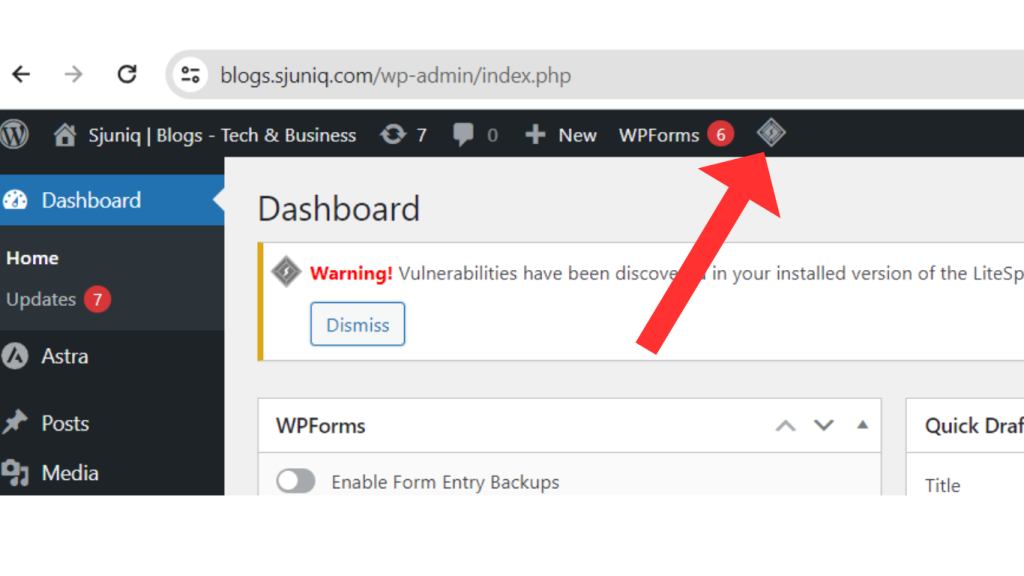
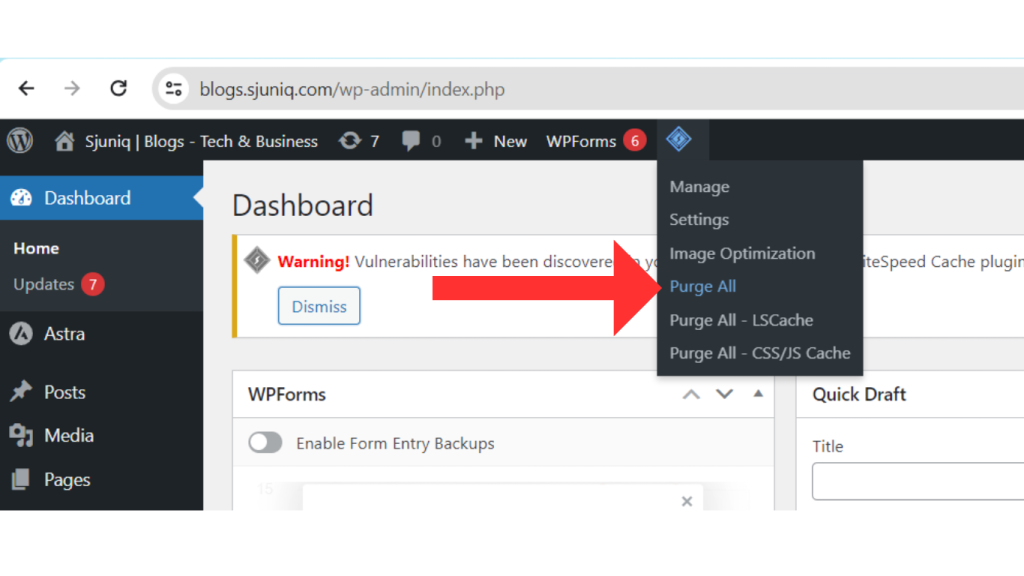
WordPress gives you and inbuilt option to clear data and update your website with the latest data. For that you need to purge your website from the Wp-admin dashboard, Click on the purge option button, Select purge all and then hard reload the website. Your website will get updated instantly after this. Below pic demonstrates the functionality.
Summary
In this article we saw how we can resolve the issue of wordpress website not updating,Basically it’s all about the issue with the application or the browser cache, We also saw multiple methods of how we can resolve the issue.